TRAIN TRACK® Web Edition Help Manual
Training Completions
TRAIN TRACK® allows you to record training completions. You may record multiple completions for the same employee over time, and TRAIN TRACK® will keep these historical records for you. You may view completion records from the Training Detail screen, the Employee Detail screen, or in reports. You may add completion records by importing them from Excel, adding them individually, adding them as a group, or by allowing employees to log in and complete an exam or indicate that they have read and understand the material in a linked document.
View Completions
To view completions, follow these steps
| Step | Illustration |
| 1. From the navigation bar, select Training > List. | 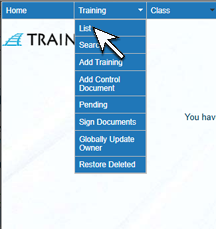 |
| 2. The Training List screen will open. Click on the name of the training you wish to view. | 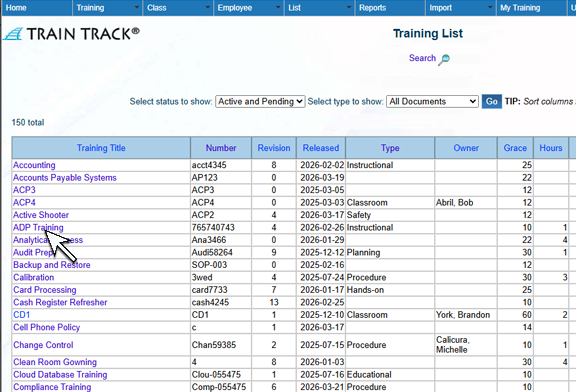 |
| 3. The Training Detail screen will open. Select the History tab to view all historical completions. You can also view non-expired completions from the Complete tab. | 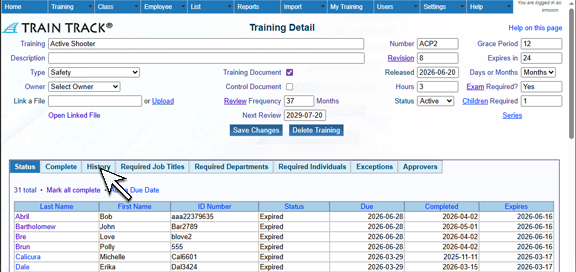 |
To add a new completion record, follow these steps
| Step | Illustration |
| 1. Open the Training List screen and select the Training. | |
| 2. The Training Detail screen will open. Select the Complete tab, then click Add Completion Records. | 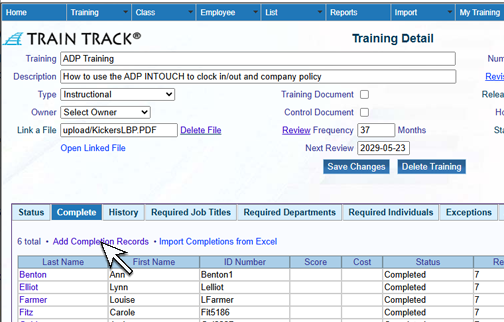 |
| 3. The Add Training Completion screen will open. Select the employee name and date. Optional: enter cost, score and "pass". Click Add. | 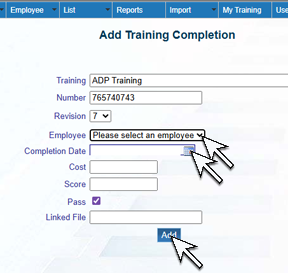 |
Edit a Completion, Expiration Date or Due Date
To edit a completion, follow these steps
| Step | Illustration |
| 1. Open the Training List screen and click on the training you wish to edit. | |
| 2. The Training Detail screen will open. From the History tab, click Edit. | 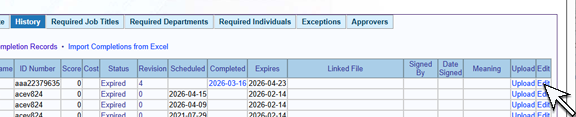 |
| 3. The Training Completion Detail screen will open. Edit the record and click Save Changes. Please note that the expiration date can only be edited to be earlier than the originally calculated expiration date. | 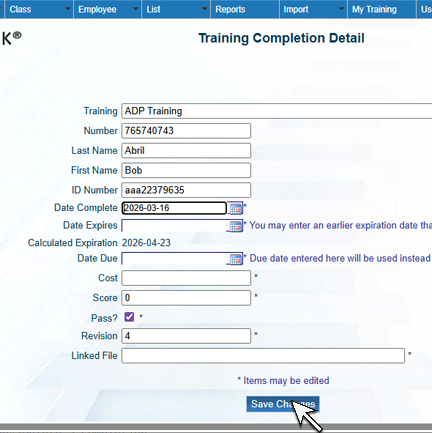 |
Delete a Completion
To delete a completion record, follow these steps
| Step | Illustration |
| 1. Open the Training List screen and click on the training. | |
| 2. The Training Detail screen will open. From the History tab, click on Edit. | |
| 3. The Training Completion Detail screen will open. Click Delete this record. | 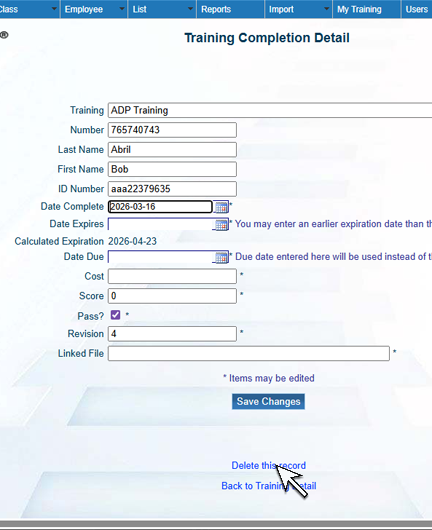 |
| 4. The Delete Completion Records screen will open. Click Delete. | 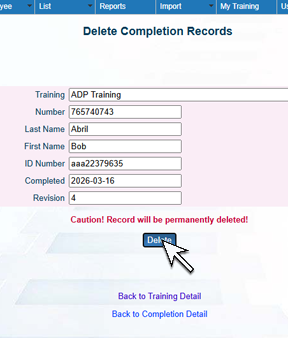 |
To add a due date, if the employee has previous completions, you may edit the latest completion record to add a later due date (see above). If the emoployee has not completed the training, you may add a due date as described below.
To add a due date, follow these steps
| Step | Illustration |
| 1. Open the Training List screen and click on the training | |
| 2.The Training Detail screen will open. From the Status tab, click Add a Due Date. | 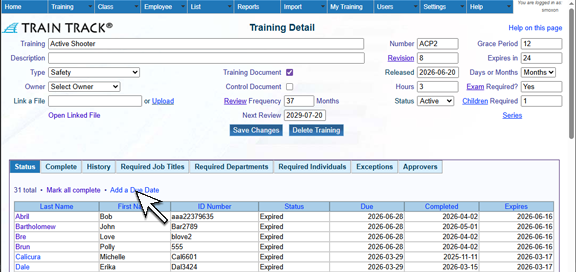 |
| 3. The Add Training Due Date screen will open. Select an Employee and Due Date. Click Add. | 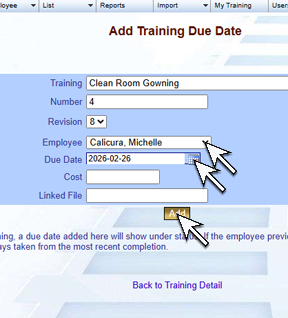 |