TRAIN TRACK® Web Edition Help Manual
Create Exam
TRAIN TRACK® allows you to set up exams for employees to complete online. To use this feature, you will need to set up the exam questions and answers, and also indicate that an exam is required for the training. You may specify the number of points for each correct answer, and the total number of points needed to pass the exam.
If an exam is required, then the training will be marked as "failed" if the exam has not been passed. When an exam has been completed and passed, the training will show a status of "completed".
You may also use this feature to allow employees to record completion of self-paced training. To do this, set up an exam with a question asking if they have completed and understand the material; when they select "Yes" and add their electronic signature, the training will show a status of "completed".
Create an Exam
To add an exam, and add questions and answers, follow these steps
| Step | Illustration |
| 1. Open the Training Detail screen to the training record you wish to add an exam for. Click Exam. | 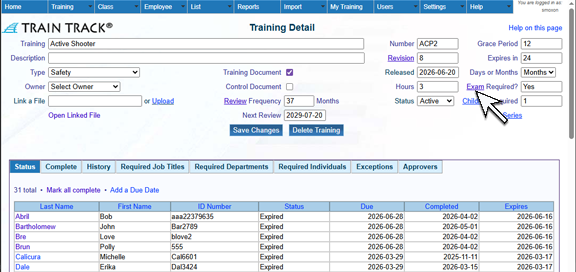 |
| 2. The Exam Questions screen will open. Enter a Question Number and Question, and click Add. The question will appear on your list of questions. Repeat this step for all of the questions in your exam. | 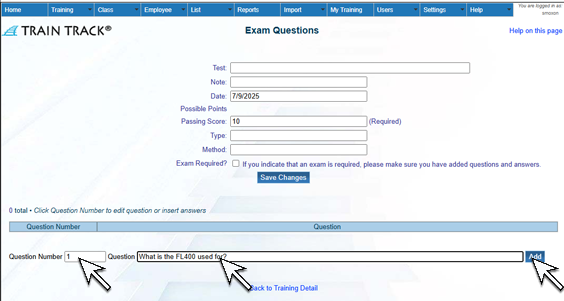 |
| 3. Click on a Question ID. | 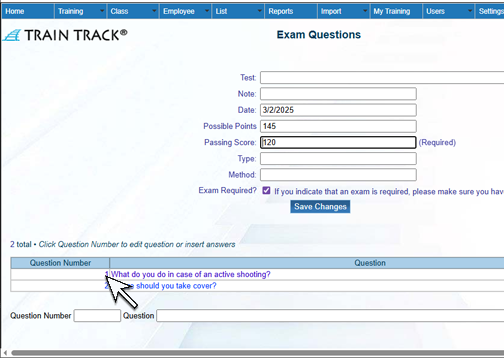 |
| 4. The question detail screen will open. Add an Answer Letter, Answer, and Point Value. Click Add Answer. Repeat for all of the answers to your question. Note: You may also edit the question from here, or click on the answer to edit.. | 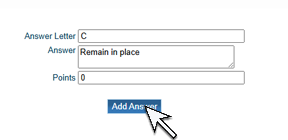 |
| 5. To add an image to your exam question, click Upload Image. | 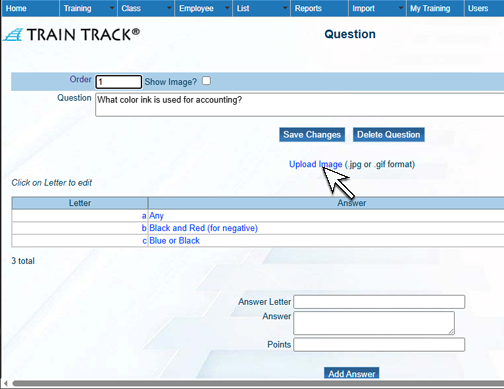 |
| 6. Click Choose File. A pop-up window will open. Select your file and click Open. Click Upload. Click Back to Question Detail and you will see your image | 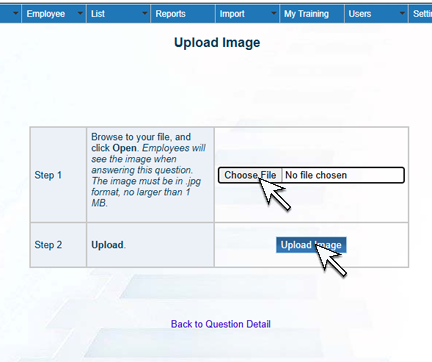 |
| 7. Return to the list of questions and set the Passing Score and check Exam Required. Save Changes. | 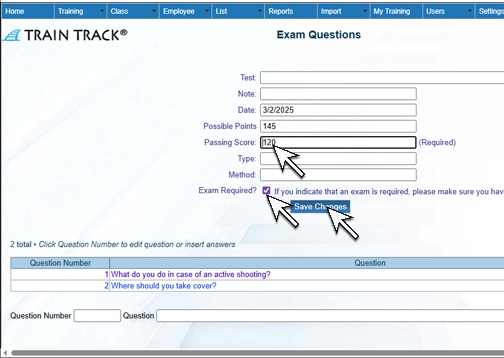 |
Edit an Exam
To edit a question, follow these steps
From the Exam Question screen, click a question number to open the detail screen. Edit the record and click Save Changes.
To delete a question, follow these steps
From the Exam Question screen, click a question number to open the detail screen. Click Delete Question.
To edit an answer, follow these steps
From the Exam Question screen, click a question number to open the detail screen. Click on an answer. Edit the answer, and click Save Changes.
To delete an answer, follow these steps
From the Exam Question screen, click a question number to open the detail screen. Click on an answer. Click Delete Answer.