TRAIN TRACK® Web Edition Help Manual
Reports
Report Menu
Open the Report Menu by clicking "Reports" from the navigation bar at the top of the screen. Under each section, there is a primary report, and a set of similar reports that allow the user to filter the data. From the report menu, select one of the following reports to view.
Class Reports
This report displays scheduled classes and the enrolled employees for each class. To view a class sign-in sheet for an individual class, open the class detail screen and click on the link.
Class Roster: Scheduled class enrollment.
Class Sign-in Sheet: To print class sign-in sheets, please open the class detail record from the menu item Class > Scheduled Classes
Completed Class Roster Completed class enrollment and attendance.
Complete Reports
These reports display all training that was completed within the selected date range, and has not expired. Inactive training is not included, and inactive employees are not included.
Complete: All completions (not expired) in date range.
Complete for Selected Department: All completions (not expired) in date range for one department.
Complete for Selected Department and Training: All completions (not expired) in date range for one department and one training.
Complete for Selected Employee: All completions (not expired) in date range for one employee.
Complete for Selected Job Title (including additional job titles): All completions (not expired) in date range for one job title, including additional job titles.
Complete for Selected Supervisor: All completions (not expired) in date range for one supervisor.
Complete for Selected Training: All completions (not expired) in date range for one training.
Complete Training Hours: All completions (not expired) in date range with total hours.
Completed Training and History Reports
These reports display all training completions within the selected date range, even if they are now expired. Inactive training and employees are only included in the "History" report. .
Custom Completed Report: Filter data and select columns for all completions in date range, including expired completions.
Completed: All completions within date range, including expired.
Completed for Selected Department: All completions within date range for one department, including expired.
Completed for Selected Department and Training: All completions within date range for one department and one training, including expired.
Completed for Selected Employee: All completions within date range for one employee, including expired.
Completed for Selected Job Title: All completions within date range for one job title, including expired and including additional job titles.
Completed for Selected Supervisor: All completions within date range for one supervisor, including expired.
Completed for Selected Training: All completions within date range for one training, including expired.
Training History: All completions within date range, including expired, inactive training and inactive employees.
Training Due Reports
These reports display all training that is currently needed, plus any training that will expire or become due within the selected number of days.
Due: All training due within the selected number of days.
Due for Selected Department: All training due within the selected number of days for one department.
Due for Selected Employee: All training due within the selected number of days for one employee.
Due for Selected Job Title: All training due within the selected number of days for one job title, including additional job titles.
Due for Selected Supervisor: All training due within the selected number of days for one supervisor.
Due for Selected Training: All training due within the selected number of days for one training.
Employee Reports
These reports display lists of employee records.
Employee Job Titles: List of all active employees and job titles, including additional job titles.
Employee List: List of all active employees.
Employee Percent Complete: Percent of required training complete for each employee.
Supervisors: List of supervisors and subordinates.
Required Training Reports
These reports display requirement records.
Exceptions for Each Employee: List of all exceptions applied to the individual, their job title(s) or department.
Exceptions for Each Training: List of exceptions by job title, departmetn or individual for each training.
Requirements for Each Training: List of individuals, job titles and departments required for each training.
Source of Requirements: For each employee, how each training is required (individual, departmetn, job title, parent or series).
Status of Required Training Reports
These reports display the status of required training. For each employee, the report includes a list of all required training, and the completion status.
Custom Status Report: Filter data and select columns for a report showing the status of required training for each employee.
Status: Status of required training for each employee.
Status for Selected Department: Status of required training for each employee in one department.
Status for Selected Employee: Status of required training for one employee.
Status for Selected Job Title (Including Additional Job Titles): Status of required training for each employee with one job title, including additional job titles.
Status for Selected Job Title -- Required by Job Title (Including Additional Job Titles)): Status of required training for each employee with one job title, including additional job titles, where the training is required by the job title.
Status for Selected Supervisor): Status of required training for each employee for one supervisor.
Status for Selected Training): Status of required training for each for one training.
Status for Selected Status): Status of required training for each employee with one status.
Percent Complete: Percent of required trainig complete for each training.
Training Reports
These reports display lists of training records.
Exam Percent Correct: Percent correct for each exam question.
Exam Questions and Answers: List of exam questions and answers.
Training List: List of all active training.
Training List (Any Status): List of all active, pending and inactive training.
Training List with Children and Series: List of all training with children and series.
Document Control Reports
These reports display reports related to document control and review.
Document Approvers: Approvers assigned to each document or training.
ECO Log: Engineering Change Order log showing all new documents or document revisions.
Pending Revisions: List of all pending revisions.
Revision History: List of all revisions for each training.
Review Schedule: List of all trainings or documents with their review due dates.
Audit Trail
These reports display data from the audit trail. They include information about all record additions, changes, or deletions in the database. The User Logins report displays user logins.
Record Changes: List of all record changes.
Record Changes for One Employee: List of all record changes for one employee, available from the employee detail screen.
Record Changes for One Training; List of all record changes for one training, available from the training detail screen.
Record Changes for One User: List of all record changes for one employee, available from the user detail screen.
User Logins: List of all user login events.
Sort Reports
Some reports include drop-down selection lists to sort the report by up to three columns. Other reports include sorting by individual columns by clicking on the column heading. You may sort these reports by any column. Click on the column heading to sort, and click again to sort the opposite way (A-Z or Z-A). After sorting, click Update. For the filtered reports, sort the records first, then enter the date range and select the item or items you wish to filter for, and click Update.
Tip: To sort by multiple columns, you can edit the text in your browser address bar. Just sort by each column and take note of how it is displayed in the bar, then edit. For example, if sorting by Last Name looks like this:
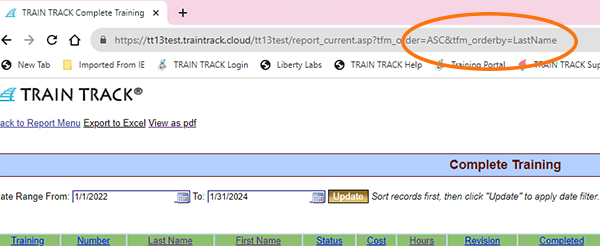
And sorting by Completion Date looks like this:
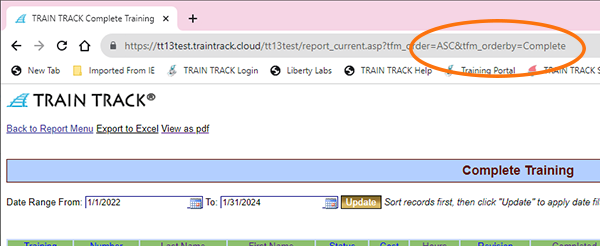
Then you can combine them like this:
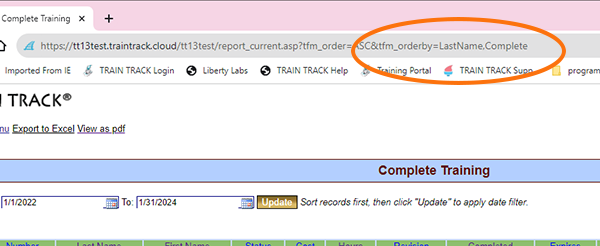
After editing the address bar, click "Update" again and your report will be sorted by multiple columns.
Export to Excel
Some reports include the option to export the data to Excel® by clicking a link at the top of the page. To export your data, click the link. Select "Save as..." and save the file to a location where you will be able to find it. Open the report in Excel®.
You may save any of the other reports to Excel® by simply highlighting the data in the report on your screen, copying, and pasting the data into Excel®.
View as pdf
Some reports include the option to view the data as a .pdf file by clicking a link at the top of the page. To view your data, click the link. You must have a .pdf reader installed to use this option.
You can also view your data in a report format for any of the other reports by simply right-clicking on the page, and selecting "Print" from the pop-up menu. You can do this from any page in the program, not just the reports.
To print certificates of completion, go to the Training Detail screen, Complete tab, and click Print Certificates for This Training. Select the employee name and click View. Right-click and select Print. You can also upload a signature image to include.