TRAIN TRACK® Web Edition Help Manual
Custom Completed Report
TRAIN TRACK® allows you to filter your records and select which fields to display for a custom completion report and a custom status report.
Custom Completed Report
To generate a custom completion report, follow these steps
| Step | Illustration |
| 1. From the navigation bar, select Reports. The Report Menu will open. Select Custom Completed Report. | 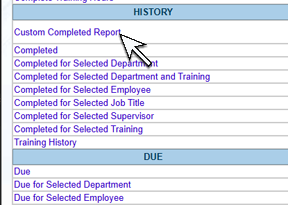 |
| 2. The report screen will open. Select the date range. | 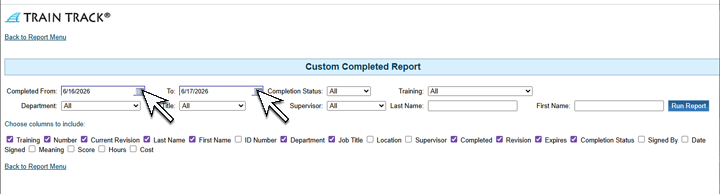 |
| 3. If you want to filter the records to only include one completion status, training, department, job title, or supervisor, select the item to filter by from the drop-down menus. You can choose as many filters as you like. For example, you could select to show only records from the IT department for the Safety training where the status is Expired. | 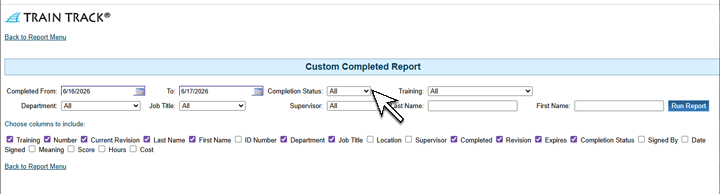 |
| 4. To filter for only one employee, type in all or part of the first or last name. | 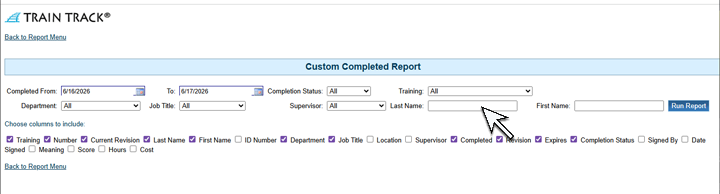 |
| 5. Check the boxes next to the fields you want displayed. | 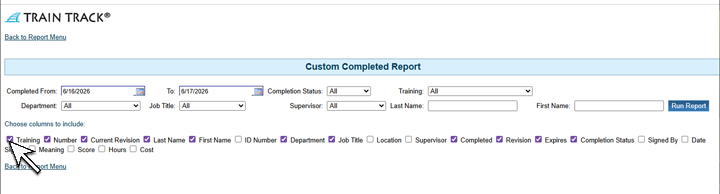 |
| 6. Click Run Report. | 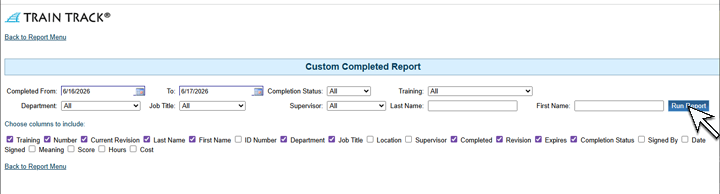 |
Custom Status Report
The custom Status report works the same way except it will display status of required training.