TRAIN TRACK® Web Edition Help Manual
Add Completion Records by Group Screen
TRAIN TRACK® allows you to add completions for all required employees as a group. You may view and edit the list of employees before adding them. Using this feature can save time when you have multiple completions to add.
To add a completions as a group, follow these steps
| Step | Illustration |
| 1. From the navigation bar, select Training > List. | 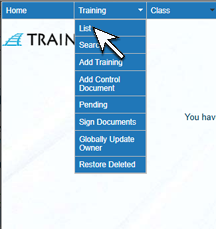 |
| 2. The Training List screen will open. Click on the name of the training. | 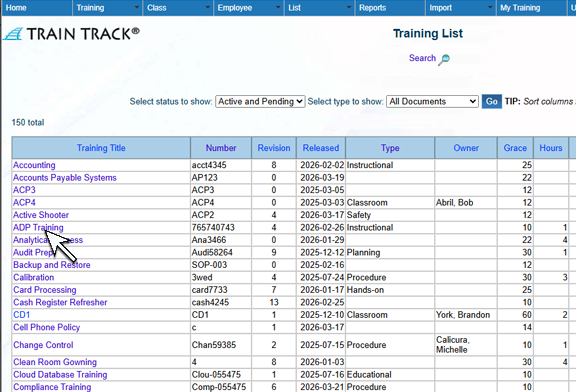 |
| 3. The Training Detail screen will open. From the Status tab, click Mark All Complete. | 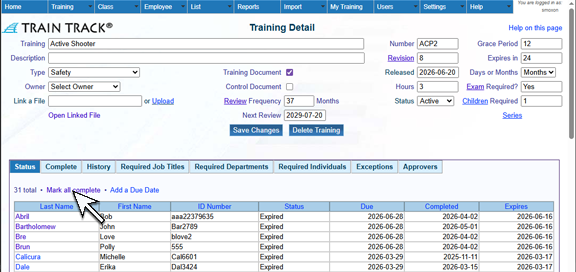 |
| 4. The Add Completions as a Group screen will open. Type in the Date training was completed and click Set Date to copy the date down to all of the records. | 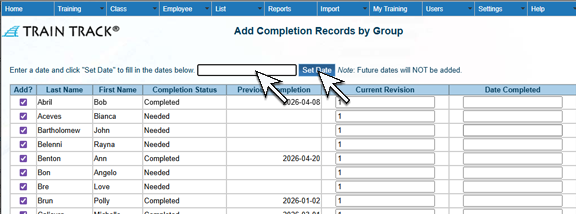 |
| 6. You may edit the Completion Dates and the Revision. Un-check the box for any records you do not want added.7. Click Add Selected Records at the bottom of the page. | 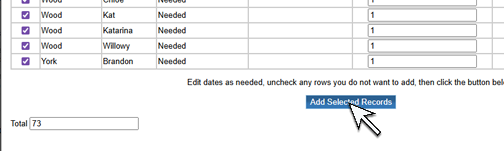 |