TRAIN TRACK® Web Edition Help Manual
Add Control Document
TRAIN TRACK® allows you to add controlled documents. You may assign document approvers, and each approver will need to log in to sign the document revision before it is released. Approvers can be notified by automatic email notices when a signature is due. You may also view a list of pending documents. New or revised control documents can't be edited once they are released, but you can add a new revision. Non-controlled documents can be added without requiring signatures.
Note: You may also add training records by importing them from Excel®.
Add Control Document
To add a control document, follow these steps
| Step | Illustration |
| 1. From the navigation bar, select Training > Add Control Document. | 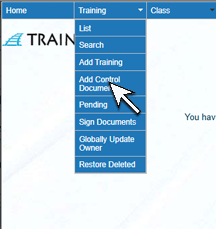 |
2. The Add Training screen will open. Enter the Training Title and Training Number. You may also add Description, Type, Owner, Linked File, Revision, Hours, Grace Period and Expiration Period. Select if it is also a Training Document. Click Add. The status will be inactive until signatures are completed. |
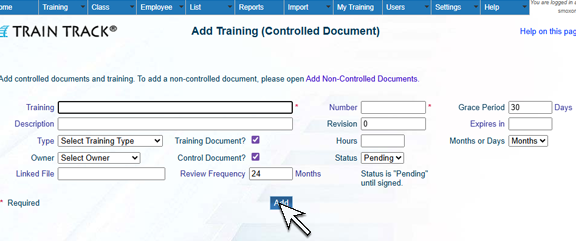 |
After adding the controlled document, you will need to collect signatures from document approvers. You can set up automatic email to notify approvers, and they can login to sign documents. Once signatures are complete, you can release the document.