TRAIN TRACK® Web Edition Help Manual
Training or Document Approver
TRAIN TRACK® allows you to assign approvers for each document. When a new release is initiated, if you have set up automatic email to notify employees of signatures due, the approvers will be notified. The approvers can log in to review and sign the documents. Once all required signatures are completed, you can release the document.
Add Approver
To add a training or document approver, follow these steps
| Step | Illustration |
| 1. From the navigation bar, select Training > Edit. | 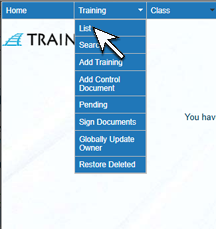 |
| 2. The Training List screen will open. Click on the title you wish to delete. | 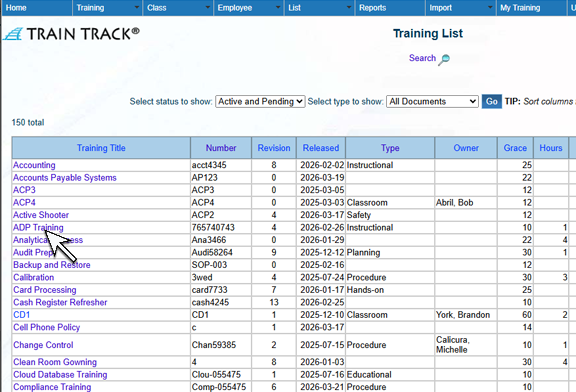 |
| 3. The Training Detail screen will open. Click Approvers. Note that the "Approvers" tab is only visible on contrtolled documents. | 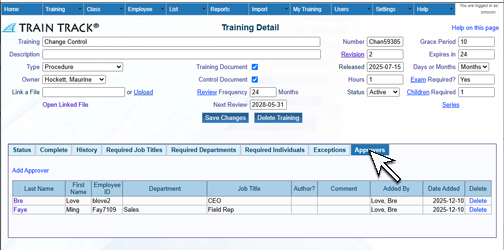 |
| 4. The Approvers screen will open. Click Add Approver. | 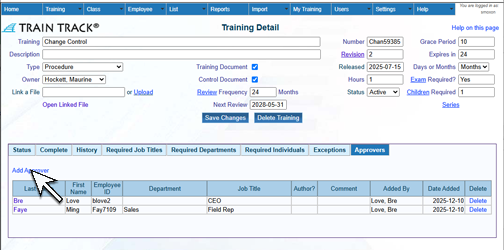 |
| 5. The Add Approver screen will open. Select an employee name, check the box if this is the author, and click Add. | 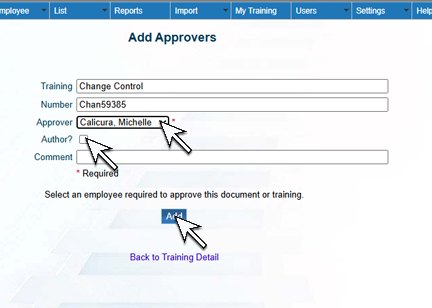 |
Delete Approver
To deleted an approver, follow these steps
| Step | Illustration |
| 1. Navigate to the Approver screen. Locate the approver you wish to delete and click Delete. | 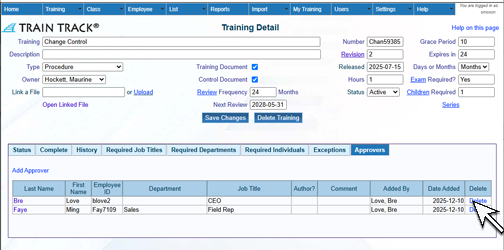 |
| 2. The Delete screen will open. Click Delete. | 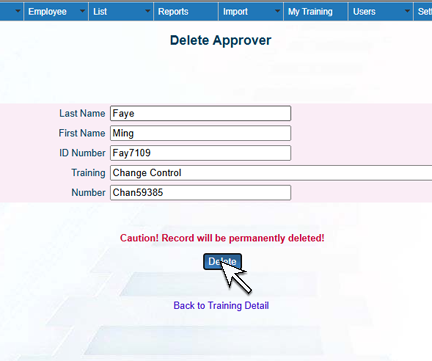 |