TRAIN TRACK® Web Edition Help Manual
Import Training Records
TRAIN TRACK® allows you to import training records from a template. When you import training records, only new training records will be imported. Existing training records will be updated with new information from the template. New training types will also be imported.
Import Training Records
To import training records, follow these steps
| Step | Illustration |
| 1. From the navigation bar, select Import > Training. | 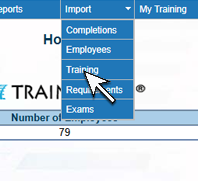 |
| 2. The import screen will open. Click the Download link to download the template. | 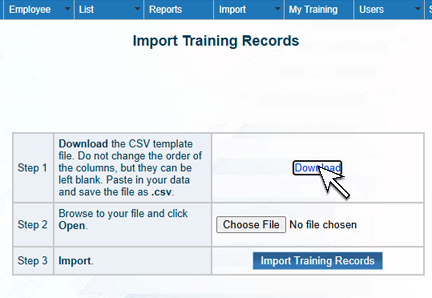 |
| 3. A browse box will open. Browse to where you want to save the file and click Save. Make a note of where you saved the file. | 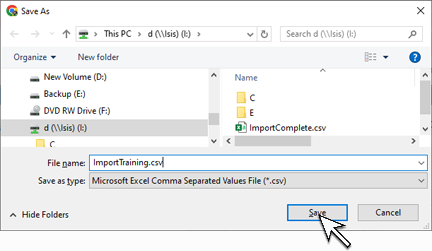 |
| 4. Open the file you saved by clicking the download icon on your browser. A list of downloaded files should open. Click on the file name. Note: if you do not see the option to open the file from your browser, locate the file from Windows Explorer and open it.. | 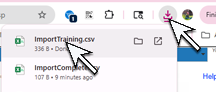 |
| 5. Paste your data into the Excel template. You will need to leave all of the column headings in place (do not alter them or move them), and paste your data below them. If you don't have data for some of the columns, just leave them blank. Please see below for details about the data you may paste into each column. |  |
| 6. Save the file as a .csv file. | |
| 7. Click Choose File (or Browse, depending on your web browser). Browse to the file you saved above and click Open. | 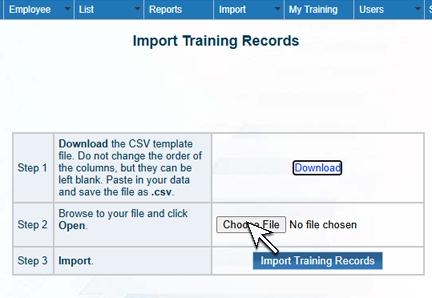 |
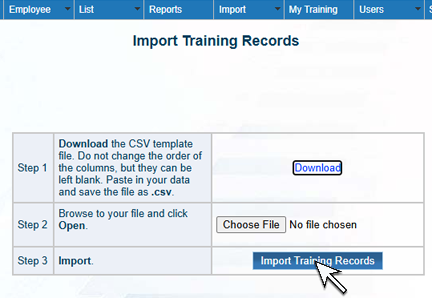
8. Click Import Training. The status of your import will be displayed along with any error messages. |
 |
Training Template Columns
The template used to import training records includes the following columns:
| Column | Description | Data Type | Restriction | Required | Default Value |
|---|---|---|---|---|---|
| Training Title | Training Title | Alphanumeric | Yes | ||
| Training Number | Training number | Alphanumeric | Must be unique | A number will be assigned if left blank | |
| Revision | Current revision | Alphanumeric | 0 | ||
| Release Date | Date this revision was released | Date | Not imported for controlled documents | Current date for non-controlled documents | |
| Retrain | If this is a new revision, do employees need to be re-trained for the new revision? | TRUE/FALSE | "Yes" or "No", TRUE or FALSE | Yes/TRUE | |
| Type | Training type | Alphanumeric | |||
| Description | Description of the training | Alphanumeric | |||
| Owner Last | The owner or author. Enter last and first name, and/or Employee ID number | Alphanumeric | |||
| Owner First | The owner or author. Enter last and first name, and/or Employee ID number | Alphanumeric | |||
| Owner ID | The owner or author. Enter last and first name, and/or Employee ID number | Alphanumeric | |||
| Hours | Hours required to complete the training | Number | |||
| Linked Document | Link to a file or document. Employees will be able to view this file prior to taking the exam | Alphanumeric | Hyperlink or link to a network file | ||
| Status | Status of training | Alphanumeric | "Active", "Pending" or "Inactive". Controlled documents import as Pending" | Active (or Pending for controlled) | |
| Grace Period | Number of days before the training is due | Number | User-defined default (see "Settings") | ||
| Expiration Period | Does the training expire in "Days" or "Months"? | Alphanumeric | |||
| Expireation Length | Number of days or months until the training expires. Leave this field blank if you do not want the training to expire. | Number | |||
| Training Document? | Is this a Training Document? | TRUE/FALSE | "Yes" or "No", TRUE or FALSE | Yes/TRUE | |
| Control Document? | Is this a Controlled Document? If it is a controlled document, revisions will require electronic signatures | TRUE/FALSE | "Yes" or "No", TRUE or FALSE | No/FALSE | |
| External ECO Number | Change Order Number used in an external source | Number | |||
| Revision Reason | Reason for the revision | Alphanumeric | |||
| Revision Description | Description of the revision | Alphanumeric | |||
| Review Months | The number of months until the document needs to be reviewed | Number | User-defined default (see "Settings") |