TRAIN TRACK® Web Edition Help Manual
Training or Document Signatures
TRAIN TRACK® allows you to assign approvers for each document. When a new release is initiated, if you have set up automatic email to notify employees of signatures due, the approvers will be notified. The approvers can log in to review and sign the documents. Once all required signatures are completed, you can release the document.
To comply with FDA 21CFR Part 11, TRAIN TRACK® allows users to secure data with electronic signatures. The user enters their user name and password and confirms the record they wish to sign, and the meaning of the signature. Once the user confirms the decision to apply the signature, the entry is locked from further editing. Meaning of the signature:
Review: Indicates the document has been reviewed (for example, when an employee reviews for training purposes).
Approval: Indicates acceptance or authorization of the content (for example, a document approver who is not the author).
Responsibility: Indicates accountability for the content or action (for example, a manager responsible for the process described).
Authorship: Indicates the signer created the document or content (for example, an employee completing an exam has authorship for the exam record).
Sign Document
To sign a document, follow these steps
| Step | Illustration |
| 1. From the navigation bar, select Training > Sign Documents. Note: for Exam-level users, select My Training > Sign Documents. | 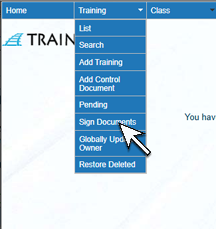 |
2. The My Signature List screen will open. Click Sign next to the document you wish to sign. Note: This screen will only display documents the logged-in user needs to sign. To view all pending signatures, from the menu bar select Training > Pending. At the bottom of the Pending Revisions screen, click View Pending Signatures. |
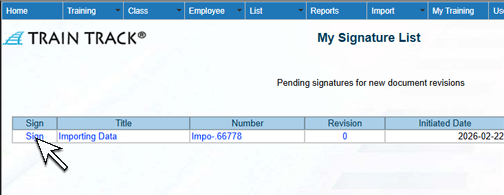 |
| 3. The Add Document Signature screen will open. Enter your password, select approval, and click Submit. | 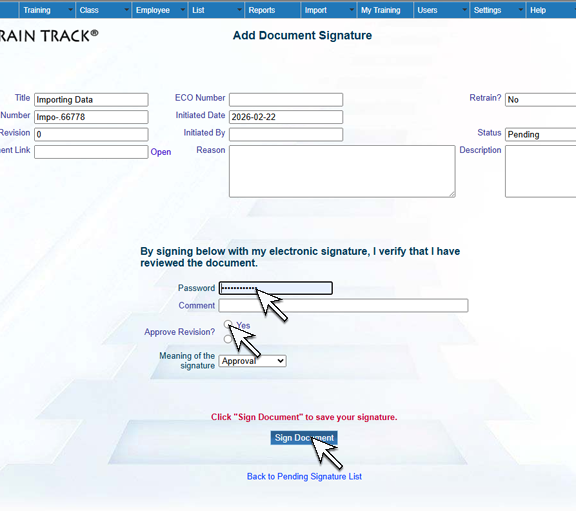 |