TRAIN TRACK® Web Edition Help Manual
Add Revisions - Controlled Documents
TRAIN TRACK® keeps track of your training or document revisions, and also allows you to collect signatures and release the new revision.
A document may be associated with each revision. The current revision is displayed with each training record. Each time a training is completed, the current revision number is stored with the completion record. When you release a new revision, you can decide if employees need to be re-trained on the new revision or not. If you indicate that re-training is required, then all completions from the previous revisions will be expired on the new revision release date. You can also view the revision history for each training or document.
The process for adding a new revision for controlled documents involves:
- Assign approvers.
- Set automatic email to send notices of signatures due.
- Initiate the revision.
- Collect signatures.
- Releasse the revision.
To add a revision for a Controlled Document, after you have assigned approvers and set up your email, follow these steps
| Step | Illustration |
| 1. From the navigation bar, select Training > List. | 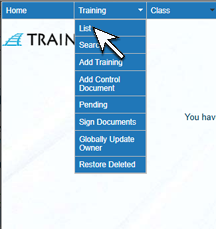 |
| 2. The Training List screen will open. Click the Training Title. | 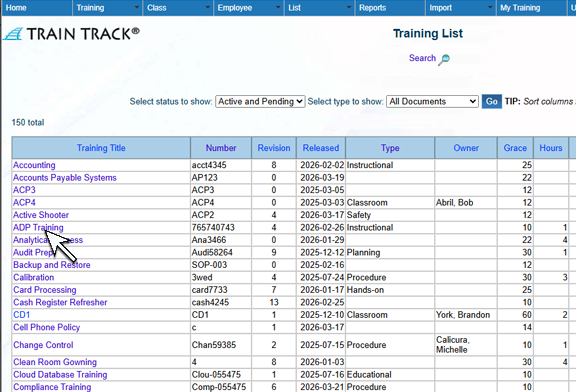 |
| 3. The Training Detail screen will open. Click Revision. | 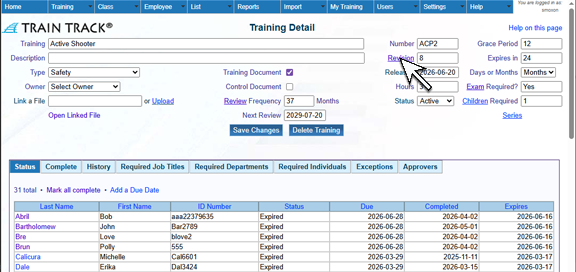 |
| 4. The Revision screen will open. | 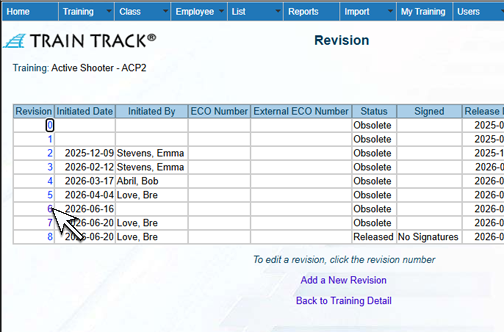 |
| 5. Click Add a New Revision. | 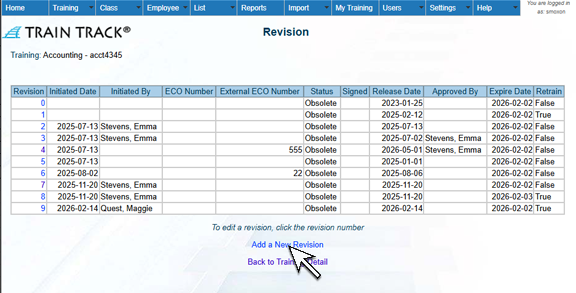 |
| 6. The Add Revision screen will open. Type in the New Revision. | 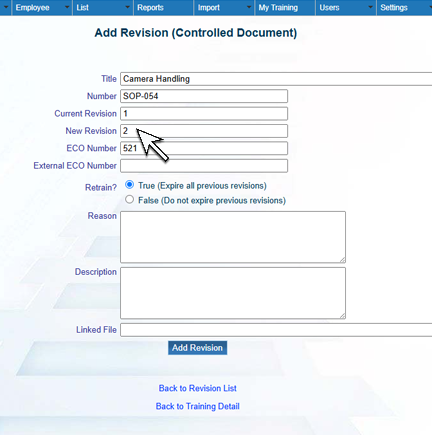 |
7. Enter an external ECO number if you have one. Select if employees need to be re-trainind, and add a reason, description and document link. Click Add. IMPORTANT: Make sure the appropriate Approvers have been selected, and make sure your automatic email is set to send notices of signatures due. After signatures have been completed, you can view the list of pending revisions and release the document. |
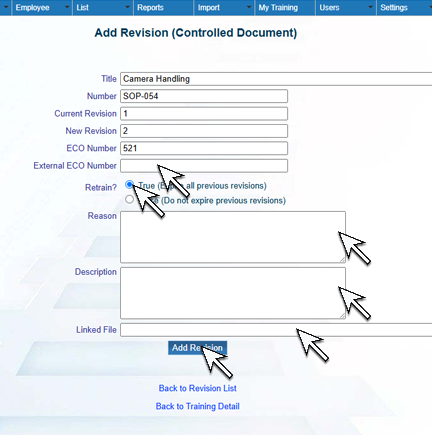 |
| 8. From the menu bar, select Training > Pending. | 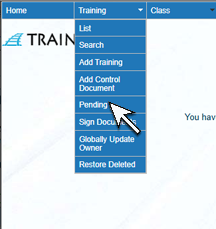 |
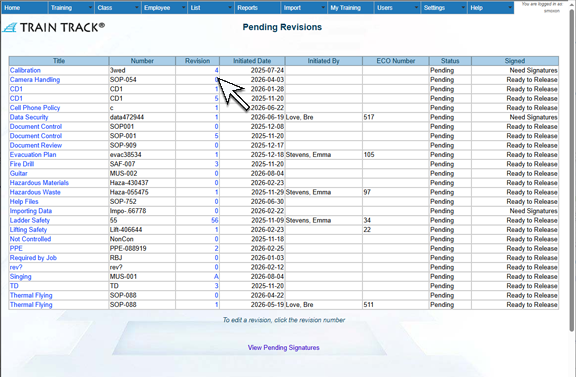
9. The list of Pending Revisions will open. Check the status of the revision. If it "Ready to Release", click the Revision Number. Note: if it is "Pending", you can click the Revision Number to view which signatures are missing. |
 |
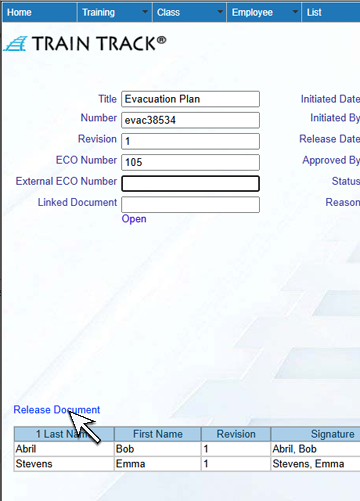
10. Click Release Document. |
 |
| 11. Enter your Password and indicate if you have verified the document and the training requirements. Select "Approval" and click Submit. | 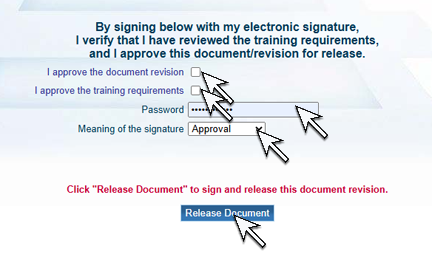 |