TRAIN TRACK® Web Edition Help Manual
Training Required
TRAIN TRACK® keeps track of the status of required training for each employee. You will need to assign required training based on job title, department, individual or required for all employees. You may also make exceptions to requirements for individuals, job titles or departments.
You may set up parent/child modules to require several training topics under one umbrella, or use this feature to substitute one training for another. You can also set up training in a series, where a second training is required a specified number of days after an initial training is complete.
Required by Job Title
You may require all employees with a specific job title to complete a training. Employees who have the job title assigned as their primary job title, or as an additional job title, will be required to complete the training.
From the Training Detail screen, the "required by job title" tab displays a list of job titles required to complete the training.
To add a job title required to complete the training, follow these steps
| Step | Illustration |
| 1. From the navigation bar, select Training > List. | 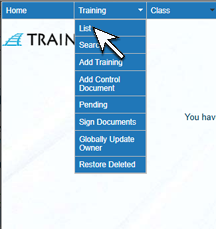 |
| 2. The Training List screen will open. Click on the name of the training. | 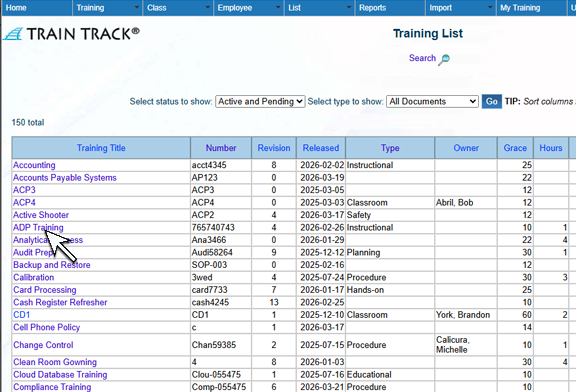 |
| 3. The Training Detail screen will open. Select the Required by Job Title tab. | 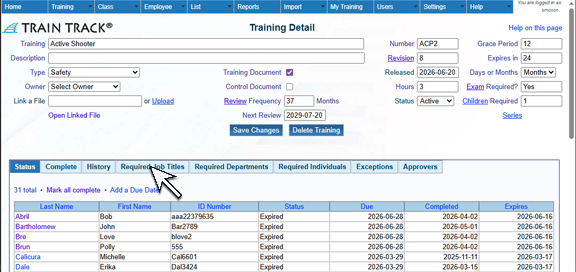 |
| 4. Click Add Required Job Titles. | 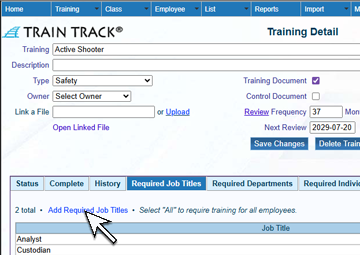 |
| 5. The Add Required Job Titles screen will open. Select the Job Title. | 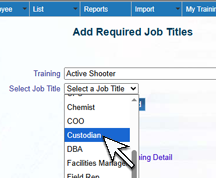 |
| 6. Click Add. | 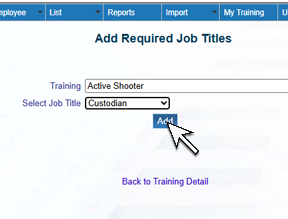 |
To delete a job title required to complete the training, follow these steps
| Step | Illustration |
| 1. From the navigation bar, select Training > List. | |
| 2. The Training List screen will open. Click on the name of the training. | |
| 3. The Training Detail screen will open. Select the Required by Job Title tab. | |
| 4. Next to the Job Title you wish to delete, click Delete. |  |
| 5. The Delete Required Job Title screen will open.Click Delete. | 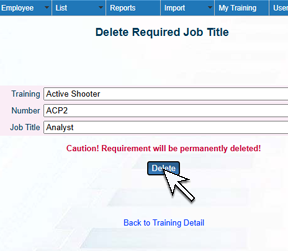 |
You may require that all employees complete a specific training. To require all employees, open the "Required by Job Title" tab of the training detail screen, and select "All". Individual employees do not need to be listed here. When you view the detail record for an employee, you will see the training listed as required.
To add all employees required to complete the training, follow these steps:
Go to the training detail screen, required by job title tab.
Click Add required job title. The Add required job title screen will open.
Select "All" and click add.
You may require that all employees within a department complete a specific training. Departments required to complete a training are displayed under the "required by department" tab of the training detail screen. Individual employees do not need to be listed here. When you view the detail record for an employee in a required department, you will see the training listed as required.
To add a department required to complete the training, follow these steps:
Go to the training detail screen, required by department tab.
Click Add required department. The Add required department screen will open.
Select the department and click add.
To delete a department required to complete the training, follow these steps:
Required by Individual
The required by individual tab displays a list of individuals required to complete the training.
To add an individual required to complete the training, follow these steps:
To delete an individual required to complete the training, follow these steps:
-
Go to the training detail screen, required by individual tab.
-
Next to the individual you wish to delete, click Delete. The delete individual screen will open.
-
Click Delete.