TRAIN TRACK® Web Edition Help Manual
Exceptions to Requirements
TRAIN TRACK® allows you to make exceptions to required training for individuals, job titles or departments. If an individual is listed as an exception, then they will NOT be required to complete the training, even if it is required for their job, department, or for all employees. If a job title or department is listed as an exception, employees in that department or assigned that job title as the primary job title or an additional job title will not be required to complete the training, even if it is required for another job they are assigned to, their department, or for all employees.
To add an exception to a requirement, follow these steps
| Step | Illustration |
| 1. From the navigation bar, select Training > List. | 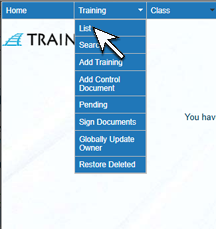 |
| 2. The Training List screen will open. Click on the name of the training. | 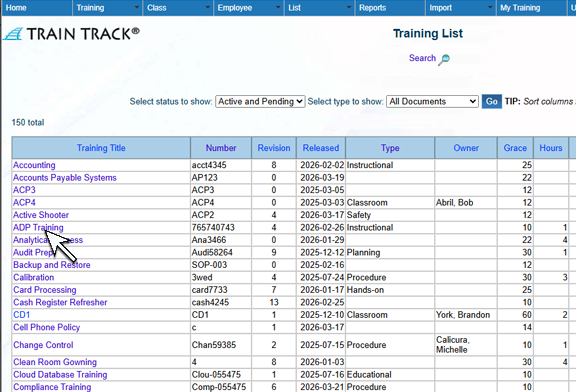 |
| 3. The Training Detail screen will open. Select the Exceptions tab. | 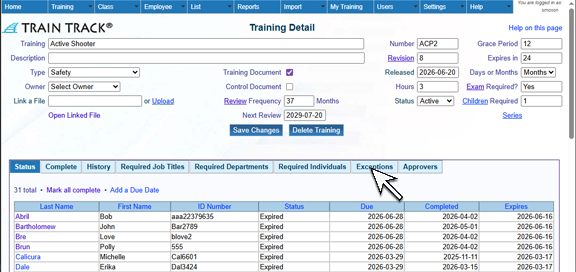 |
| 4. Click Add Exception by Employee. You may also add exceptions by department or job title. | 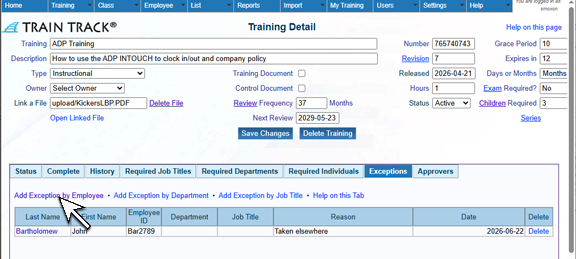 |
5. The Add Exceptions screen will open. Select the Employee. If you selected Job Title or Department above, then select the Job Title or Department for the exception. |
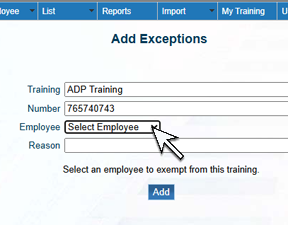 |
| 6. Type in a reason (optional) and click Add. | 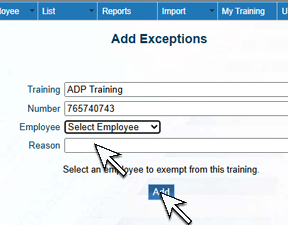 |
To view exceptions, follow these steps:
-
Open the training detail screen to the training you wish to view exceptions for.
-
Click the Exceptions tab.
To delete an exception, follow these steps:
| Step | Illustration |
| 1. Open the training detail screen to the training you wish to view exceptions for and select the Exceptions tab. | |
| 2. Next to the record you wish to delete, click Delete. | 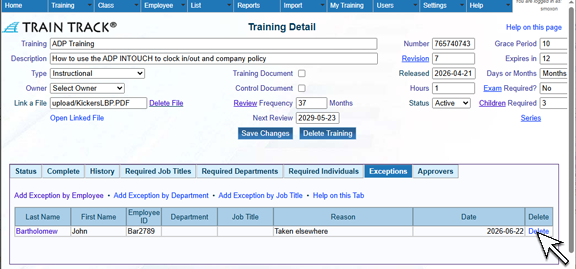 |
| 3. The Delete Exception screen will open. Click Delete. | 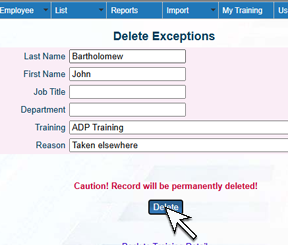 |