TRAIN TRACK® Web Edition Help Manual
Departments
TRAIN TRACK® allows you to edit the list of departments available to select from. You may assign each employee to a department. When a training is required for a department, all employees assigned to that department will automatically be required to complete the training. You may view departments as a list, and you may also view a detail record for each department.
View Departments
To view departments, follow these steps
| Step | Illustration |
| 1. From the navigation bar, select List > Department. | 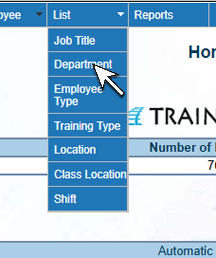 |
| 2. The Department List screen will open. | 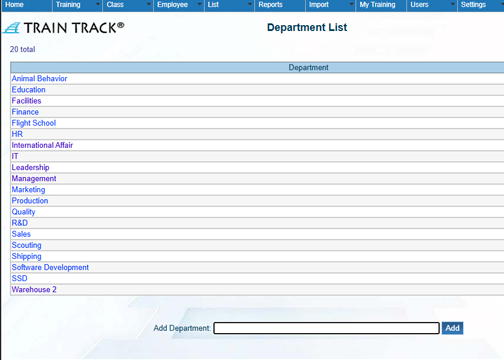 |
| 3. Click on the name of the Department you wish to view. | 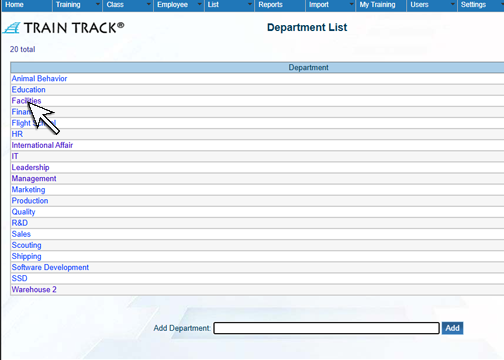 |
| 4. The Department Detail screen will open. You may view the required training for the department, or click the Employees tab to view employees in the department. | 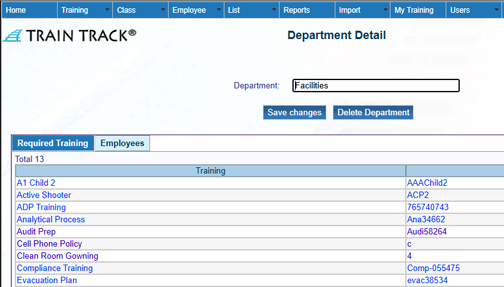 |
To add a new department, follow these steps
| Step | Illustration |
| 1. Open the Department List screen. | |
| 2. Type the name of the department into the Add Department field. | 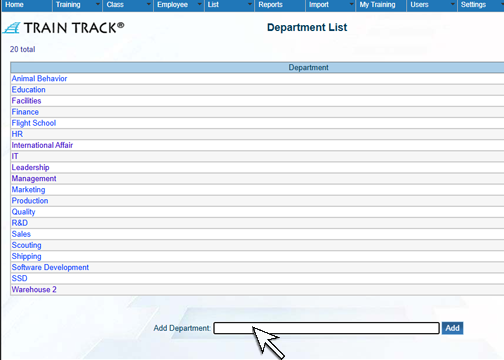 |
| 3. Click Add. | 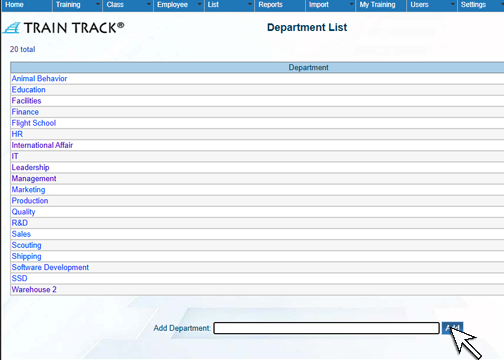 |
Edit a Department
To edit a department, follow these steps
| Step | Illustration |
| 1. Open the Department List screen. | |
| 2. Click on the Department you wish to edit. | |
| 3. The Department Detail screen will open. Edit the Department. | 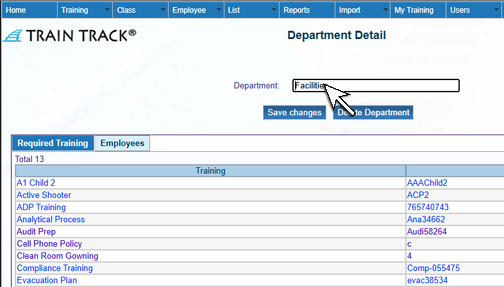 |
| 4. Click Save Changes. | 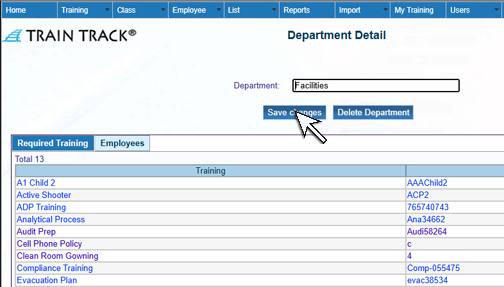 |
Delete a Department
To delete a department, follow these steps
| Step | Illustration |
| 1. Open the Department List screen. | |
| 2. Click on the Department you wish to delete. | |
| 3. The Department Detail screen will open. Click Delete Department. | 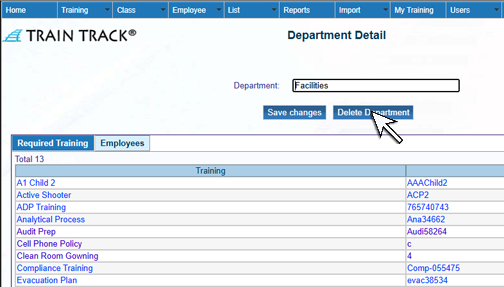 |
| 4. Click Delete. |  |