TRAIN TRACK® Web Edition Help Manual
Upload File for Training Record
TRAIN TRACK® allows you to upload a training document for each training record. When you upload or link a document to the training record, users will be able to click a link to view the file before taking an exam, or from the list of training records. Uploaded files are stored on the server with the database. If you don't want to upload your files, you can provide a hyperlink to them instead.
Upload a File
To upload a file to your training record, follow these steps
| Step | Illustration |
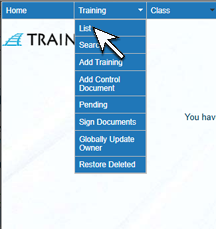
1. From the navigation bar, select Training > List. |
 |
| 2. The Training List screen will open. Select the training and click the Training Title to open the Training Detail Screen | 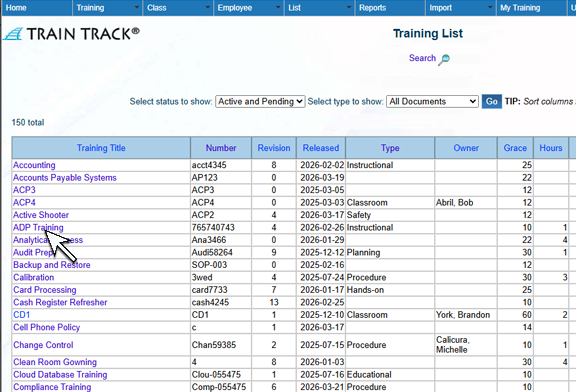 |
| 3. The Training Detail screen will open.Click Upload. | 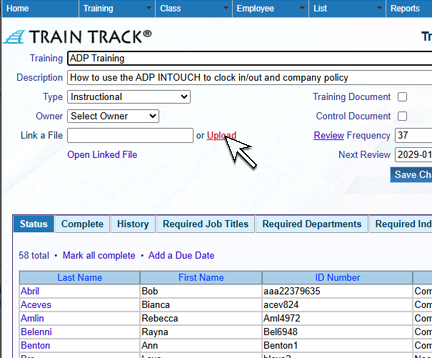 |
| 4. The Upload screen will open. Click Browse or Choose File, depending on your browser, and browse to where you saved the template file. | 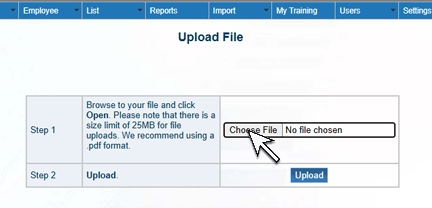 |
| 14. Select the file and click Open. | 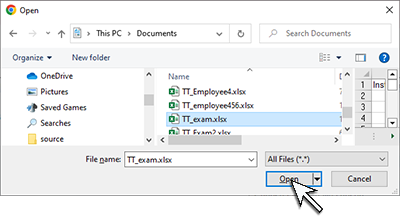 |
| 15. Click Upload. The link to the file will be displayed on the Training Detail screen. | 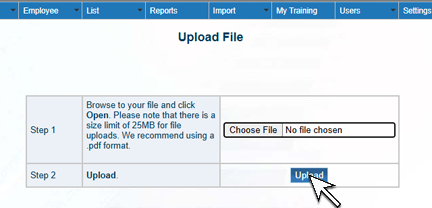 |
Delete a File
To delete an uploaded file, follow these steps
| Step | Illustration |
1. From the navigation bar, select Training > List. |
|
| 2. The Training List screen will open. Select the training and click the Training Title to open the Training Detail Screen | |
| 3. The Training Detail screen will open.Click Delete File. | 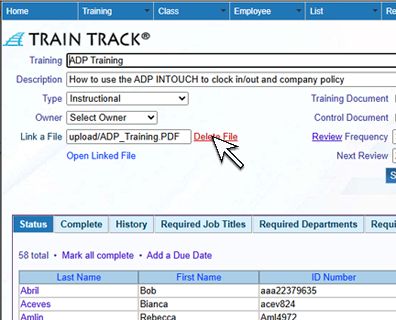 |
| 4. The Delete File scereen will open. Click Delete. | 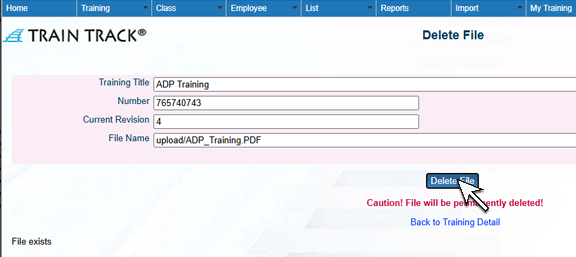 |