TRAIN TRACK® Web Edition Help Manual
Series Training
TRAIN TRACK® allows you to set up required training in a series, where a second training is required a specified number of days after an initial training is complete.
For example, you might require an initial extensive training, and then a refresher each year. In this case, the initial training would have no expiration length, but the second would expire each year.
You could also use this feature for part one and part two of a training. In this case, both of them could be set to expire after a specific length of time, or neither.
If a training is designated as a series, then when the first required training has been completed, and the specific number of days have passed, the second training will be required.
To add a series training, follow these steps
| Step | Illustration |
| 1. From the navigation bar, select Training > List. | 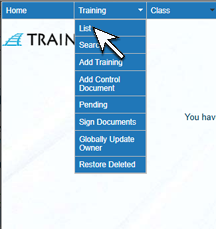 |
| 2. The Training List screen will open. Click on the name of the training. | 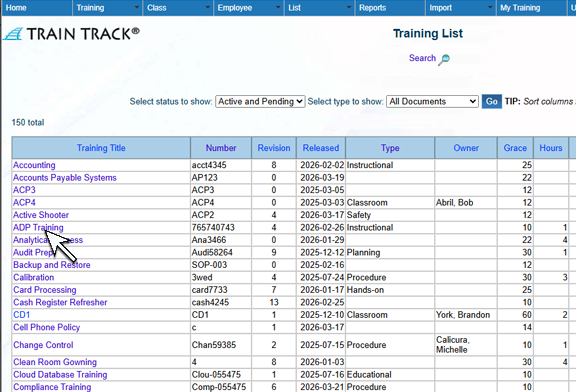 |
| 3. The Training Detail screen will open. At the top of the page, click Series. | 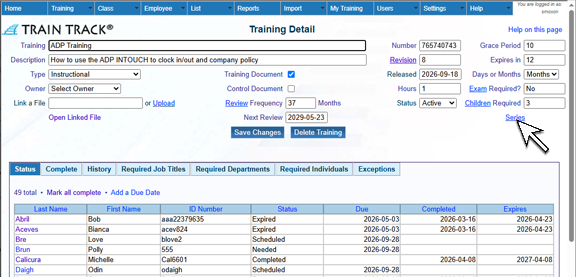 |
| 4. The Series screen will open. Select a Training from the list to add as a series, and enter the number of Days then click Add. | 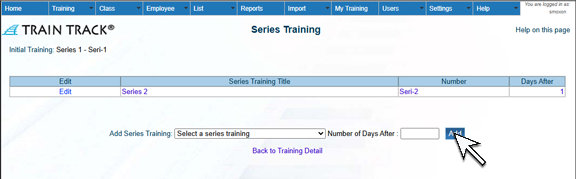 |
To delete a series training, follow these steps
| Step | Illustration |
| 1. From the navigation bar, select Training >List. | |
| 2. The Training List screen will open. Click on the name of the training. | |
| 3. The Training Detail screen will open. At the top of the page, click Series. | |
| 4. The Series screen will open. Click Edit next to the series you wish to delete. | 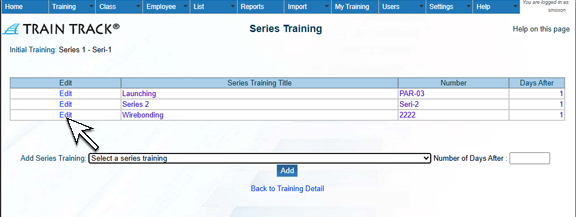 |
| 5. Click Delete Series. | 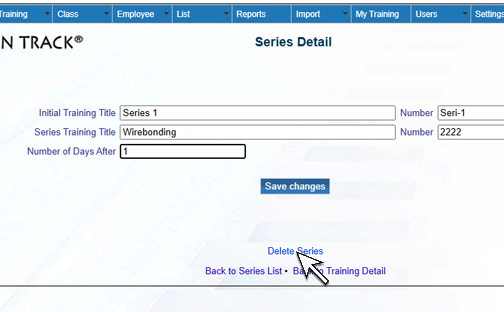 |
| 6. The Delete Series screen will open. Click Delete. | 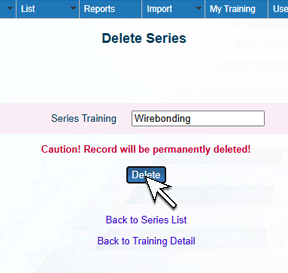 |