TRAIN TRACK® Web Edition Help Manual
Training or Document Reviews
TRAIN TRACK® allows you to keep track of document review schedules and completed reviews. You may set a default review frequency which may be edited for individual records. Based on the frequency and the date the document was last updated or reviewed, a next review due date will be calculated. This date can be viewed on the Training List, Training Detail, and the "Training List and Review Schedule" report. You may also view the review history by clicking "Review" from the Training Detail screen.
Review Frequency
To set review frequency, follow these steps
| Step | Illustration |
| 1. From the navigation bar, select Settings > Settings and Defaults. | 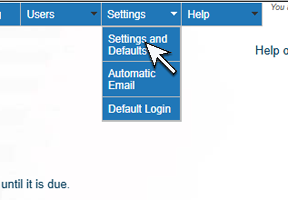 |
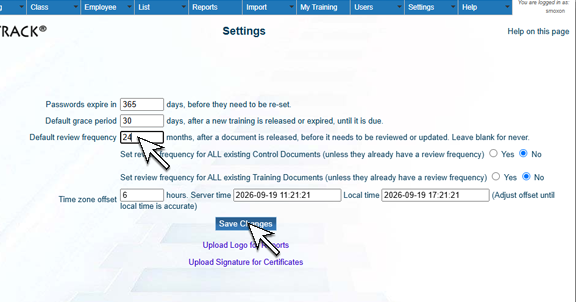
2. The Settings screen will open. Enter the default Review Frequency and click Save Changes. When you add new documents or training records, this will be used as the default review frequency. To edit the frequency for a specific record, open the Training Detail screen, edit the value and save changes.
|
 |
Add a Review
To add a review, follow these steps
| Step | Illustration |
| 1. After you have reviewed and approve the document, and verify that it does not need any changes and the training requirements are correct, navigate to the Training Detail screen and click Review. | 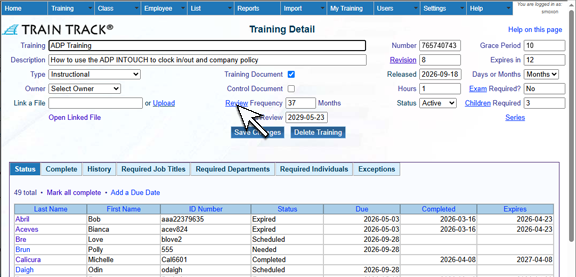 |
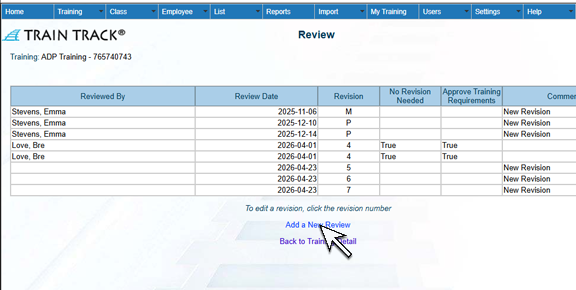
2. The Review screen will open. Click Add a New Review.
|
 |
| 3. The Add Review screen will open. Type in your Password, add a Comment. Check the boxes for No Revision Needed and I Approve the Training Requirements. Click Submit. | 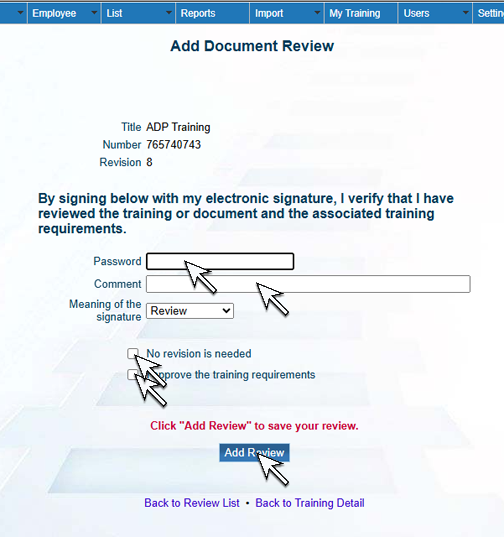 |
Review History and Schedule
To view the history of reviews, Navigate to the Training Detail screen and click Review.
The Review screen will open. This displays a list of all reviews. You may also go to the Report Menu under "Document Control" and select Review Schedule. This will provide a list of when each document is due for a review.