TRAIN TRACK® Web Edition Help Manual
Parent/Child Modules
One of the advanced features of TRAIN TRACK® is the ability to set up parent/child modules. You may designate one training as a parent, or umbrella training, with multiple child modules, and you may indicate the number of child modules required in order for the parent to be considered complete. You may also use this feature to substitute one training for another.
If a training is designated as a parent with child modules, then when the parent is required, the child training is also required. When the designated number of child modules have been completed, the parent is also considered completed. When the parent is marked as completed, the child training is also considered completed.
To view Parent or Child records, follow these steps
1. From the navigation bar, select Reports
2. Open the report Training List with Children and Series.
3. You can see Children for each training. To see if a training has a Parent, click the Child Title or the Child Number heading to sort by child. You can now see if the training in question has a Parent.
To add a child module, follow these steps
| Step | Illustration |
| 1. From the navigation bar, select Training > List. | 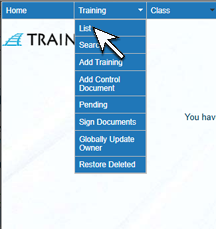 |
| 2. The Training List screen will open. Click on the name of the parent training. | 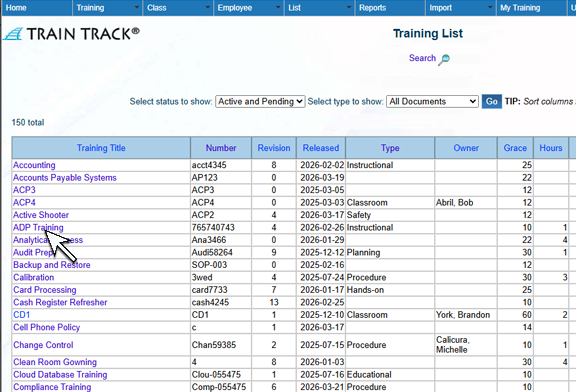 |
| 3. The Training Detail screen will open. At the top of the page, click Children. | 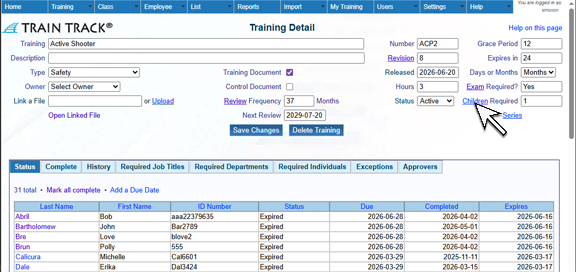 |
| 4. The Child Training screen will open. Select a training from the list to add as a child. | 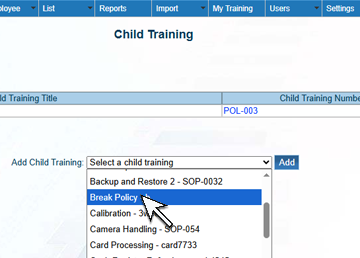 |
| 5. Click Add. | 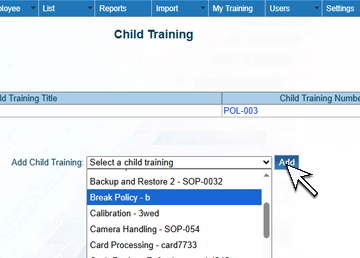 |
| 6. Repeat the steps above for eachchild tra ining. | |
| 7. Return to the Training Detail screen and set the number of children required. DO NOT SKIP THIS STEP! This is the number of children an employee must complete in order for the parent to be complete. You may set this as the total number of children if they all have to be complete, or any number that you require. If you leave the number aat 1, then the parent will be marked complete when only one child is complete. | 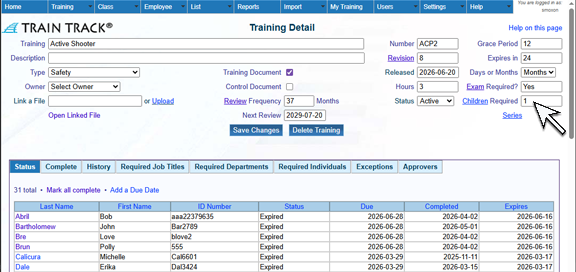 |
To delete a child module, follow these steps
| Step | Illustration |
| 1. From the navigation bar, select Training > List. | |
| 2. The Training List screen will open. Click on the name of the parent training. | |
| 3. The Training Detail screen will open. At the top of the page, click Children. | |
| 4. The Child Training screen will open. Click Delete next to the child you wish to delete. | 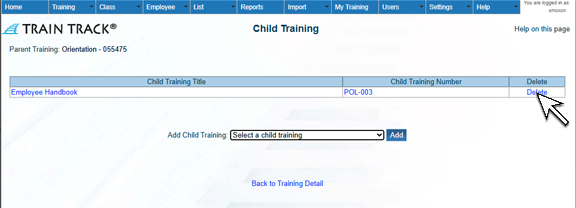 |
| 5. Click Delete. | 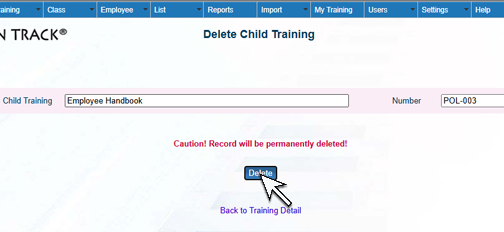 |
| 6. Return to the Training Detail screen and adjust the number of children required. | |
From the child list screen, you may also click on the training title to open that training detail record.
Substitutions
You may substitute one training requirement for another by using the parent/child module feature. Simply select the first training and add the training that may be substituted for it as a child. When either training is completed, the first training will show a status of "complete".
Another option would be to create a new parent training and select both of the similar training titles as children, indicating that only one of the two needs to be completed.