TRAIN TRACK® Web Edition Help Manual
Training List
TRAIN TRACK® allows you to list all of your training topics, assign required training to employees, and track training completion data. You may view training records as a list, allowing you to easily scroll through the records to find a training. From the list, you may select a training and click on it to open the record in detail view. You may also sort the list by any column by clicking on the column heading.
View List
To view the Training List, follow these steps
| Step | Illustration |
| 1. From the navigation bar, select Training > List. | 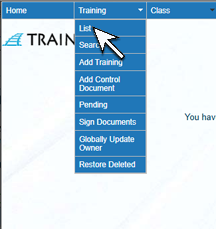 |
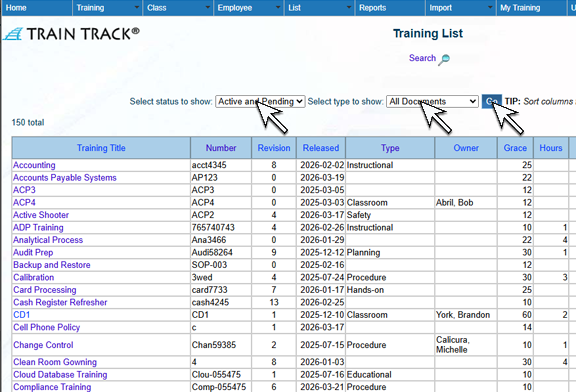
| 2. The Training List screen will open. This screen displays a list of all available training. | 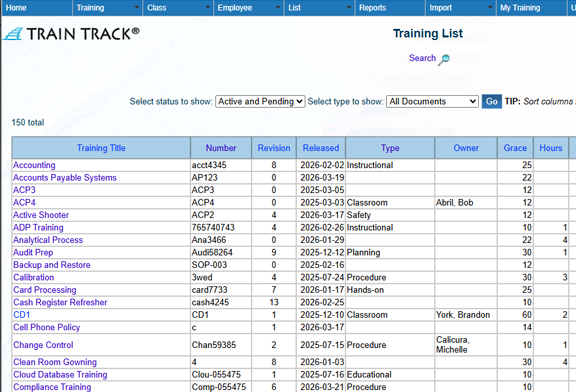 |
| 3. To sort the records, click on the column heading. By default, the records are sorted alphabetically by training title. To sort by another column, click on that column heading. Click again to sort in descending order. | 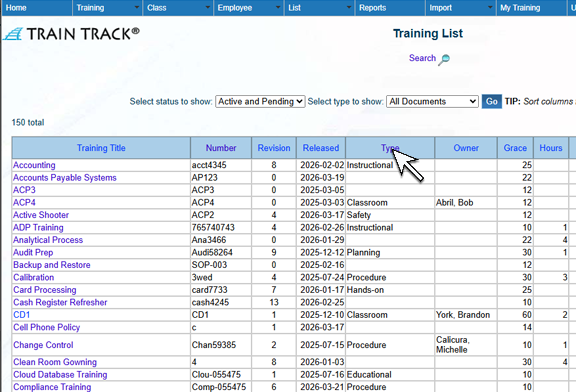 |
| 4. To open the Training Detail record, click on the Training Title. | 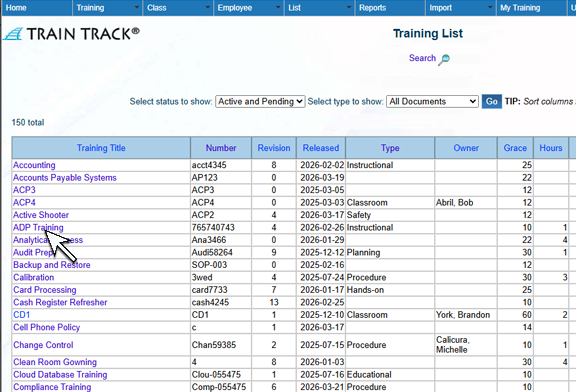 |
5. You may filter the list by status, and select the type of records to show. By default, "Active Records" and "All Documents" (training and control documents) are displayed. Select the status and type you wish to view, and click Go. If you want to sort the records, sort the columns first, then filter by status and type.
|
 |