TRAIN TRACK® Web Edition Help Manual
Training Expirations
TRAIN TRACK® allows you to set trainings to expire after a specific amount of time, or when there is a new revision released. For each trtaining completion, an expiration date will be calculated. This date will be the completion date plus the number of days or months until it expires, or the day a new revision was released if re-training was required. You may override this expiration date with a manually entered date that is earlier than the calculated date, but not later. For example, if an employee is involved in an accident, you may want to require them to repeat the trtaining sooner than it would normally expire, but you will not be able to allow an employee to retake it after the normal expiration period.
Edit the Expiration Date
To edit the expiration date, follow these steps
| Step | Illustration |
| 1. From the navigation bar, select Training > List. | 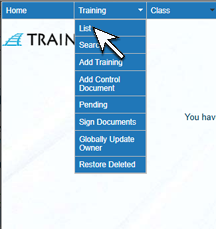 |
| 2. The Training List screen will open. Click on the name of the training you wish to view. | 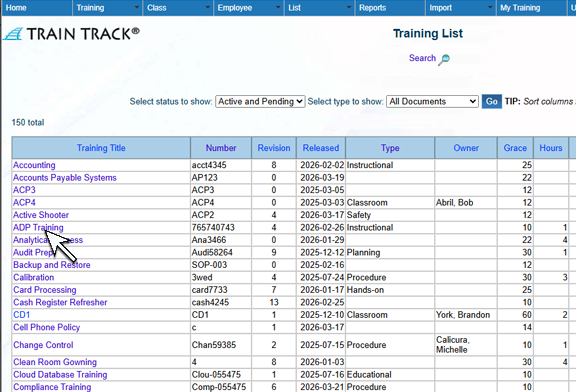 |
| 3. The Training Detail screen will open. Select the History tab to view all historical completions. | 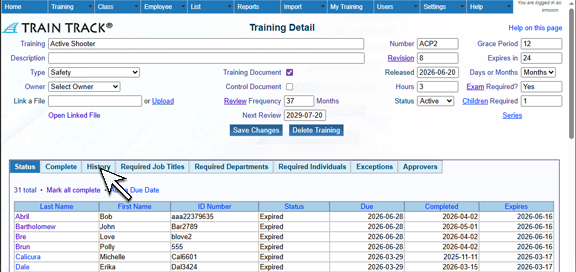 |
| 4. From the History tab, locate the record you wish to edit, and click "Edit:". | 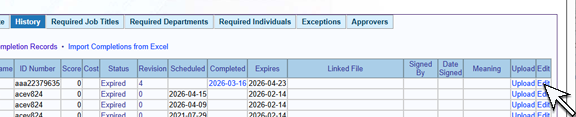 |
| 5. The Training Completion Detail screen will open. Select the new Date Expires. | 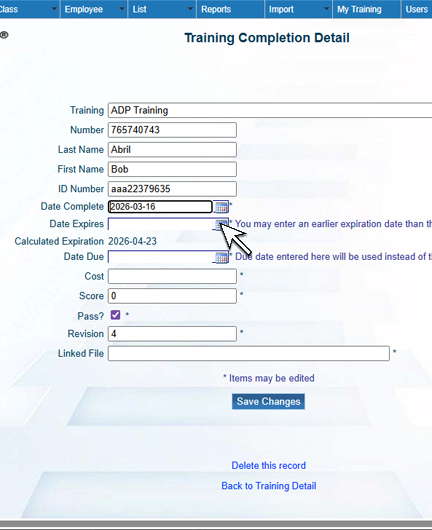 |
| 6. Click Save Changes. | 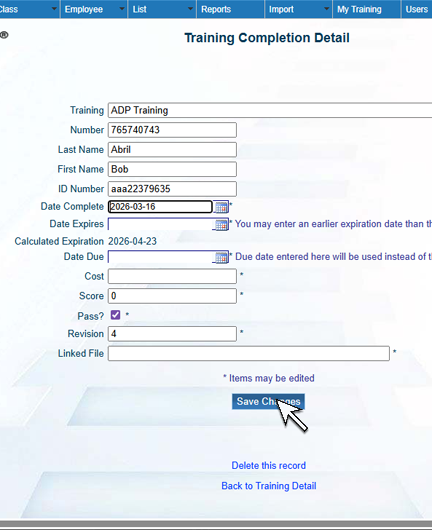 |
Set the Expiration Period
To set the expiration period, follow these steps
| Step | Illustration |
| 1. From the navigation bar, select Training > List. | |
| 2. The Training List screen will open. Click on the name of the training you wish to view. | |
| 3. The Training Detail screen will open. Enter Expires in and select Months or Days. The training completion will now expire after the selected interval. Leave the field blank to have the completion not expire. | 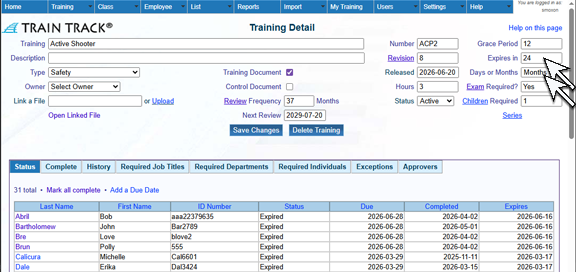 |