TRAIN TRACK® Web Edition Help Manual
Delete Training or Document
TRAIN TRACK® allows you to delete training records or controlled documents from your database. If you do not want to delete the record, you can instead set the status to "Inactive", to keep the record but exclude it from most screens and reports.
Delete Training
To delete a training record, follow these steps
| Step | Illustration |
| 1. From the navigation bar, select Training > List. | 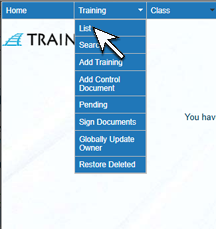 |
| 2. The Training List screen will open. Click on the title you wish to delete. | 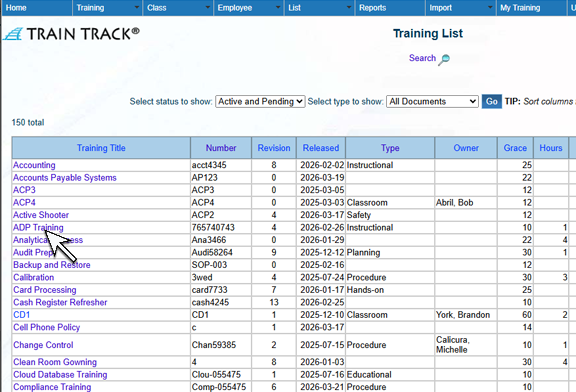 |
| 3. The Training Detail screen will open. Click Delete Training. | 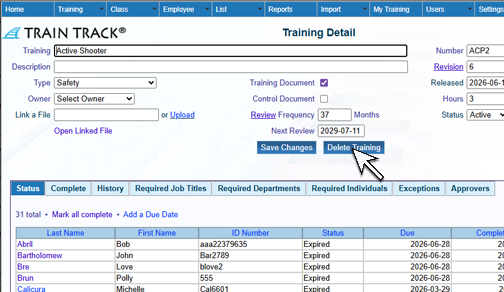 |
| 4. The Delete screen will open. Click Delete. | 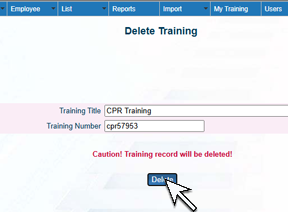 |
Restore Deleted Training
To restore a deleted training record, follow these steps
| Step | Illustration |
| 1. From the navigation bar, select Training > Restore Deleted. | 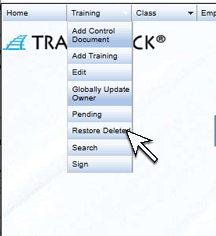 |
| 2. The Deleted Training List screen will open. Click on the title you wish to restore. | 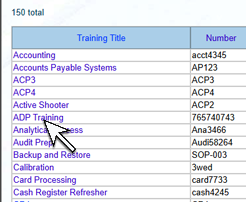 |
3. Click Restore. Note: If you re-used the training or document number, you will need to use a new number or remove the record that has the duplicate number. Training numbers must be unique. |
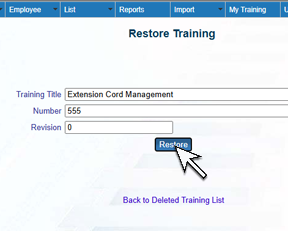 |
If you see a message that the number is in use and you can't restore this training, you will need to either change the number of the conflicting training or change the number of this training before you can restore it. You cannot have two training records with the same number, so you will need to change one of them.