TRAIN TRACK® Web Edition Help Manual
Take an Exam
To take an exam, follow these steps
| Step | Illustration |
| 1. From My Training, select a needed training from the list. | 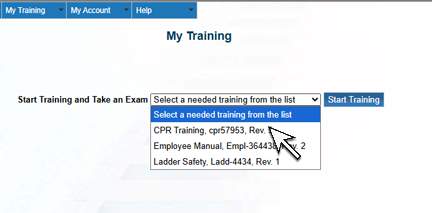 |
| 2. Click Start Training. | 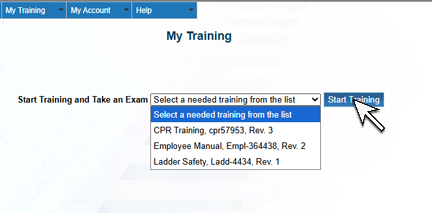 |
| 3. If there is a link to a file or document, click the link to review the information. | 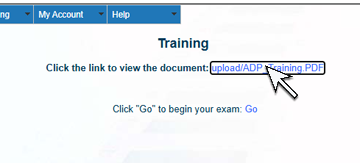 |
| 4. After you review the document or file, return to the Training screen and click Go. | 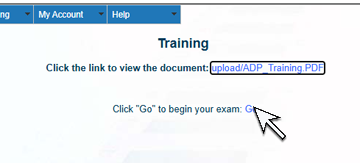 |
| 5. Select the correct answer. Repeat for each question. | 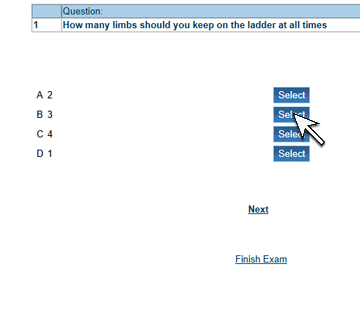 |
| 6. When all questions have been answered, the "Submit Completed Exam" screen will open. Select the Completion Date. Type in your User Name and Password. Leave the next field set to "Authorship". | 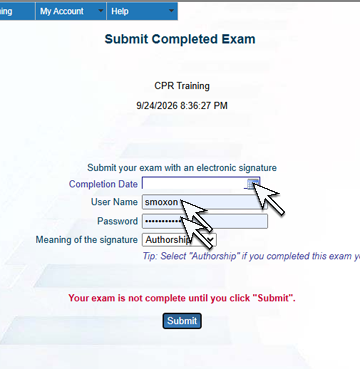 |
| 7. Click Submit. | 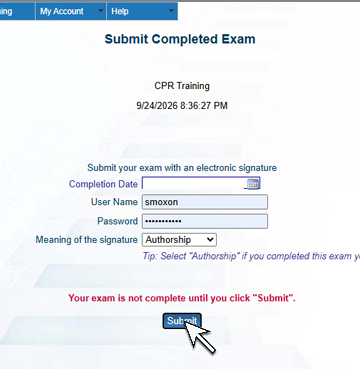 |
| 7. You will see your exam score, the total possible points, questions you ansewred incorrectly, and pass/fail. | 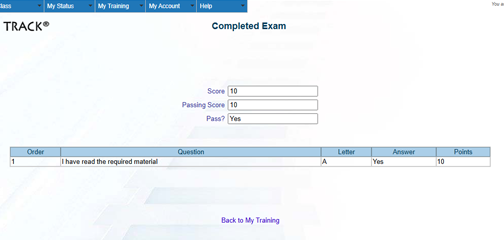 |